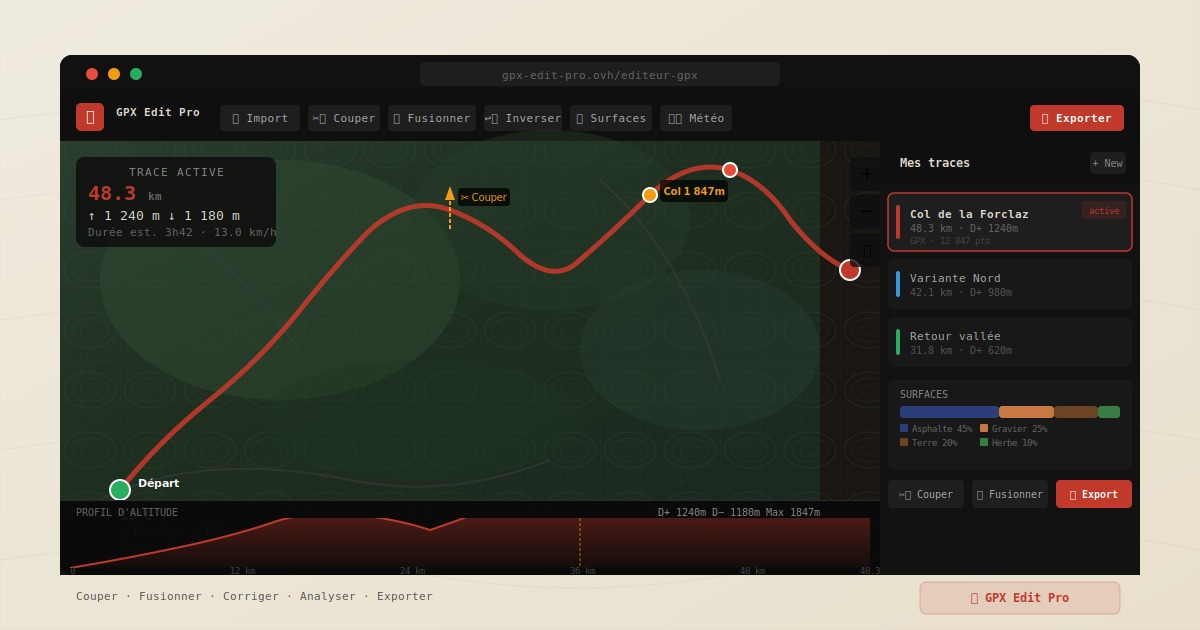
GPX Edit Pro editor interface with interactive map and elevation profile
🗺️ 100% free · No sign-up required

Free GPX Editor — Cut, merge and analyse your tracks.

Cut a track in two, merge multiple GPX files, fix elevation, reverse a route or plan one from scratch. Everything runs in your browser — no install, no account, your data never leaves your device.

Local processing, private data No installation required Free, no ads Metric & imperial (miles, ft) 7-day weather along the route Keyboard shortcuts & saved session
4
Import formats (GPX, FIT, TCX, KML)
🍪×0
Zero cookies, zero tracking — your files stay with you
Unlimited simultaneous tracks
100%
Free, no sign-up or ads
27 tools

Cut, merge, fix, plan — precise tools for every stage

Gravel cyclists, trail runners, long-distance hikers, kayakers — each tool answers a precise need, from creation to export.

Create & Import
🗺️

Plan a route from scratch

Click the map to place waypoints. The routing engine calculates the best path for your chosen profile: road cycling, MTB, trail running or hiking. You can also draw freehand — useful for kayaking, stand-up paddleboarding or measuring the crossing distance across a lake or estuary. No starting file needed.

Planning
📂

Import a GPX, FIT, TCX or KML file

Drag and drop your file or click to select it. To convert FIT to GPX, import your Garmin file directly — no prior conversion needed. Compatible with Wahoo, Suunto, Bryton, Polar, Coros and Google Earth (KML). Import multiple files at once, with no limit on number.

Import
➡️

Extend an existing track

Enable Extend mode to continue a track from its endpoint — or from its start in reverse. Place additional points on the map with active routing: the new section connects cleanly to the original track. Useful for lengthening a recorded route or adding an out-and-back to a loop.

Editing
Editing
✂️

Cut a track in two

One click on the map or on the elevation profile places the cut marker. The track splits into two independent files you can edit and export separately. Useful for isolating a climb, separating two back-to-back recorded outings, or extracting a precise segment.

Editing
📏

Split at regular intervals

Automatically divide a track into fixed-length sections — for example every 10 km or every 30 minutes. Each section becomes an independent track. Ideal for preparing stages of a long-distance journey: split a Coast to Coast walk, an Alps cycling crossing or the West Highland Way over several days.

Editing
🔗

Merge multiple tracks into one

Select multiple GPX files and assemble them into a single route. Assembly order can be automatically optimised so that endpoints connect correctly. Ideal for reconstituting a route recorded in several outings — but also for preparing a multi-day journey: a 4-day hike along the Pembrokeshire Coast Path, a cycling tour of the Scottish Highlands or a long-distance trail walked over several sessions.

Editing
🔀

Combine tracks into loops — unique feature

Import multiple GPX files that cross or overlap. GPX Edit Pro analyses the intersections and generates up to 5 viable loops — each exportable as GPX. Ideal for creating an MTB loop from existing tracks, assembling trail paths or composing longer hiking circuits without retracing the same sections.

Unique
↩️

Reverse a track

Flip the direction of a route in one click. You recorded the outward leg but want to navigate the return — reverse and export.

Editing
🏁

Move the start point

On a loop, choose where you want to begin without changing the rest of the track. Click the new start point — the route reorganises automatically. Locate a car park first using the POIs, then move the start point there.

Editing
⚙️

Reshape a track with handles

Handles are placed automatically every 500 m along your track. Drag a handle to redraw that section — routing recalculates in real time between neighbouring handles. More precise than moving individual points, faster than a full redraw.

Editing
📌

Edit points one by one

Switch to edit mode to move, add or delete each GPS point individually on the map. Ideal for correcting an accidental detour, removing a zig-zag or adjusting an overly wide bend.

Editing
📉

Reduce a large GPX file

The Douglas-Peucker algorithm reduces the point count while preserving the general shape. Adjust the tolerance and see the result in real time before confirming. A 50,000-point GPX can drop to 3,000 with no visible distortion — essential for GPS devices with limited memory.

Optimisation
Analysis
🏔️

Fix incorrect elevation data

Your GPS recorded erratic elevations due to poor signal? Recalculate from digital elevation models (EU-DEM, global SRTM). Elevation gain becomes reliable, graphs become coherent.

Analysis
📊

Calculate elevation gain and view the profile

Calculate positive and negative elevation gain, min/max altitude and gradient per segment. Hover over the curve to locate the corresponding point on the map. Select a zone on the profile to cut the track at exactly that point.

Analysis
🎨

View gradients on the map

Colour your track by gradient: green for flat, orange for moderate slopes, red for steep sections. Spot the climbs at a glance before a cycling outing or identify the technical sections of a trail.

Analysis
🌍

View surface type on the map

The track is coloured by actual surface: tarmac, compacted, gravel, dirt, grass, cobblestone, rock. A chart shows the percentage breakdown — essential before a gravel route so you know what to expect.

Analysis
🌤️

Weather along the route and at the summit

Check current conditions and a 7-day forecast for any point on your track: feels-like temperature, wind, rain probability, visibility. If your route climbs to a high point, a dedicated panel shows specific conditions at that altitude.

Analysis
⚖️

Compare multiple tracks

Open the comparison panel to view the statistics of each imported track side by side: distance, elevation gain, estimated duration, speed. Handy for choosing between two variants of the same route before you head out.

Analysis
Field Planning
📍

Points of interest along the track

Display mountain huts, passes, water fountains, car parks, restaurants, summits and other useful points near your route. Click a POI to automatically reroute your track to pass through it, then return to the main route.

Planning
🚩

Place markers on the map

Drop waypoints anywhere — a planned supply stop, a meeting point, a hazard to flag. Add a note to each marker. Waypoints are included in the GPX export as standard <wpt> tags.

Planning
🗺️

5 map layers to choose from

Switch between several map backgrounds as needed: standard map, multiple topographic variants with contour lines. Useful for reading the terrain before a hike or analysing a col on a detailed topo map.

Comfort
Export & Share
📄

Export a PDF route book of your route

Generate a print-ready A4 PDF for each track: topographic map capture, elevation profile, surface breakdown (tarmac, gravel, trail…), full statistics (distance, elevation gain, elevation loss, estimated duration). For multiple tracks, the export produces a ZIP containing a PDF and GPX per track. Choose the sport to adapt the layout (road cycling, MTB, trail, gravel, hiking).

Export
💾

Export as GPX, KML or TCX

Download your track in your preferred format. Standard GPX works with Garmin Connect, Wahoo, Suunto, Bryton, Polar, Coros, Strava, Komoot, RideWithGPS and the vast majority of GPS devices and sports platforms. KML for Google Earth. TCX for training platforms.

Export
🔗

Share a track by link and QR code

Generate a unique share link for any track. Your recipient opens it in their browser — the track displays on the map with elevation profile and statistics, no account or sign-up needed. A QR code is generated automatically, handy to print or display on screen. The GPX file remains downloadable from the link.

Share
Simulation & Comfort
🎮

Simulate an activity from a GPX track

Choose from 7 sport profiles — hiking, trail running, road cycling, gravel, MTB, kayak, stand-up paddleboarding — set your age, weight and effort level, and get a simulation with estimated duration, effective speed, heart rate and realistic cadence. Duration is calculated via the Naismith formula calibrated per sport. Useful for estimating the real time of a route before you go.

Simulation
📡

Track your position in real time

Enable your phone's GPS to locate yourself on the map and see your progress along the track. The compass shows your heading and the distance to the nearest track — handy during a recce or a navigation outing.

Navigation

Undo / Redo every operation

Every change is recorded in a full history. A mis-placed cut, an accidental point move — undo in one click and your track is intact. Work without fear of losing your progress.

Comfort
In 4 steps

Edit a GPX track in 4 steps

No install, no account. Your GPX editor is ready in seconds.

1

Import your file

Drag and drop a GPX, FIT, TCX or KML — or create a route from scratch directly on the map. Import multiple tracks simultaneously.

2

Analyse the route

Interactive elevation profile, gradient visualisation, surface detection, 7-day weather, variant comparison — everything updates in real time.

3

Edit and plan

Cut, merge, reverse, reshape, fix elevation, add POIs and waypoints — every operation can be undone.

4

Export and share

GPX, KML, TCX, A4 PDF route book or share link with QR code — compatible with all GPS devices and sports platforms.

Compatibility

All your GPS formats, in one tool

GPX Edit Pro reads files from your GPS devices and sports apps: Garmin, Wahoo, Suunto, Bryton, Polar, Apple Watch, Coros, Sigma and many others.

  • 📄
    GPX — GPS Exchange Format The universal standard. Compatible with all devices and platforms (Garmin, Strava, Komoot, Wahoo, RideWithGPS…).
  • FIT — Flexible and Interoperable Data Transfer Garmin's proprietary format, read directly. Preserves heart rate, power and cadence data on import.
  • 🏃
    TCX — Training Center XML Legacy Garmin Training Center format. Compatible with Polar, Suunto and older Garmin exports.
  • 🌐
    KML — Keyhole Markup Language Google Earth and Maps format. Import routes traced in Google Maps or created in QGIS.
  • 📤
    Standard GPX export One export format, but the best: standard GPX, accepted everywhere, with trackpoints, elevation and metadata.
<!-- Example GPX file -->
<gpx version="1.1">
  <trk>
    <name>Ben Nevis Summit</name>
    <trkseg>
      <trkpt lat="56.797" lon="-5.003">
        <ele>1345</ele>
      </trkpt>
      ... (n points)
    </trkseg>
  </trk>
</gpx>
Under the hood

Details that make all the difference

What you don't notice at first glance, but that makes a real difference from the second session onwards.

  • 🧭

    Routing tailored to your activity

    Choose the profile that matches your outing: road cycling, MTB, trail running or hiking. The engine calculates a realistic path on the appropriate network — not the same roads for a gravel rider and a cycle tourer.

  • 🔀

    Combine — graph algorithm

    Import tracks that cross each other. The algorithm builds a graph from intersections, eliminates dead-ends and proposes up to 5 viable loops from this path network.

  • 🌍

    Surface detection on your track

    Real surface detection in 7 categories (tarmac, gravel, dirt, grass, rock…) via PMTiles vector tiles. Breakdown displayed as a percentage along the track.

  • 🏔️

    Digital elevation model — 25m precision in Europe, 90m worldwide

    Elevation correction uses tiled topographic data: EU-DEM / Copernicus for Europe (25m resolution, the most precise available in open access), SRTM for the rest of the world (90m). Calculation is done directly from your track's coordinates — without sending the file to a server.

  • 🌤️

    Weather at the start and at the summit

    7-day forecasts for any point on your track. If the route climbs, a separate panel shows conditions at the highest point of the route.

  • 🎒

    Bikepacking & long-distance hiking POIs

    Search along your track for all useful amenities: supermarkets, bakeries, pharmacies, petrol stations, water fountains. Plus accommodation: campsites, mountain huts, hotels, guesthouses. Filter by category, view on the map, add a stop in one click. Essential for planning an autonomous traverse.

  • 💾

    Session automatically saved

    Your work is kept in the browser. Reload the page without losing your tracks in progress. Close the tab — everything disappears cleanly, nothing remains on the server.

The details that change everything

📐 Keyboard shortcuts for all frequent actions
💾 Session auto-saved (sessionStorage)
🔀 Drag and drop to reorder tracks
☑️ Multi-select to manage tracks in batch
⚡ Adaptive LOD — large tracks (+50,000 pts) without slowdown
📷 Export elevation profile as PNG
🎨 Custom name and colour for each track
📱 Mobile-optimised interface (bottom dock)
↶ Full history — undo / redo every operation
20 questions

Frequently asked questions

Questions asked by cyclists, trail runners and hikers before editing their GPS tracks.

How do I cut a GPX track in two?

Import your file, activate the Cut tool, then click on the map or on the elevation profile. The track splits into two independent files, each exportable separately.

How do I merge two GPX files into one?

Import your files simultaneously, select them in the track list, then click Merge. Assembly order can be automatically optimised so that endpoints connect. One GPX file as output, directly exportable.

What's the difference between Merge and Combine?

Merge joins tracks end to end. Combine analyses the intersections between multiple crossing tracks and generates up to 5 viable loops without dead-ends — useful for assembling local trail paths, MTB loops or hiking trails into larger circuits.

How do I see the surface type on my route (tarmac, gravel, trail)?

In the Analysis panel, enable Surface by colour. The track is coloured by actual surface in 7 categories: tarmac, compacted, gravel, dirt, grass, rock. A chart shows the percentage breakdown.

How do I check the weather on my route?

Weather button in the Analysis panel. 7-day forecast for the start point. If your route climbs, a dedicated panel shows specific conditions at the summit.

How do I reverse a GPX track?

Select your track and click Reverse. The route is flipped in one click — handy for turning an outward journey into a return.

My GPX file has incorrect elevation data. How do I fix it?

Use Fix Elevation in the Edit panel. Elevations are recalculated from digital elevation models: EU-DEM / Copernicus for Europe (25m precision), SRTM for the rest of the world (90m). No file is sent to a server.

How do I reduce the size of a large GPX file?

Simplify in the Edit panel. The Douglas-Peucker algorithm reduces the point count while preserving the general shape. Adjust the tolerance in metres and see the result in real time — a 50,000-point file can drop to 3,000 with no visible distortion. Essential for GPS devices with limited memory.

How do I create a GPX track from scratch?

Click Draw / Route in the toolbar, place points on the map. Routing calculates the path automatically (road, cycling, trail, hiking). Export as GPX when ready.

How do I convert a Garmin FIT file to GPX?

Import your .fit directly — GPX Edit Pro reads Garmin FIT files without any intermediate conversion. The elevation profile and statistics appear immediately. Then export as standard GPX compatible with all sports platforms.

How do I delete a section in the middle of a track?

Cut at the start of the section to remove, then at the end. Delete the middle. Merge the two remaining pieces. Or switch to Edit points mode to delete point by point.

How do I split a track every 10 km automatically?

Split by intervals in the Edit panel. Choose the distance (e.g. every 10 km) or duration (every 2 hours) — each section becomes an independent track exportable separately. Handy for preparing stages of a long-distance journey or a multi-day tour.

How accurate is the corrected elevation data?

The tool uses tiled data: EU-DEM / Copernicus for Europe (25m resolution, the most precise available in open access) and SRTM for the rest of the world (90m). Correction is applied point by point on your track, without sending the file to a server.

How do I add a mountain hut or supply point to my track?

Enable Points of Interest (POIs) and filter by category: mountain huts, guesthouses, campsites, water fountains, supermarkets, bakeries, pharmacies, petrol stations, car parks, mountain passes, summits. Click a POI to automatically reroute your track to pass through it, then return to the main route. Essential for planning supplies and accommodation on a long-distance trip.

How do I check the gradient profile before a cycling or trail run?

The elevation profile appears as soon as you import a file. Enable Gradient by colour to see steep sections on the map — green for flat, red for severe climbs.

My GPS recorded two outings in the same file. How do I separate them?

Find the break between the two outings on the elevation profile — it often appears as an altitude jump or speed gap. Cut there with the Cut tool, then export each half separately as GPX.

Will the edited track work on Garmin, Wahoo, Strava?

Yes. The GPX export is in the universal format compatible with Garmin Connect, Wahoo ELEMNT, Suunto, Bryton, Polar, Coros, Sigma, Apple Watch (via Workouts), Strava, Komoot and RideWithGPS.

Are my GPX files sent to a server?

No. GPX Edit Pro runs entirely in your browser — your files never leave your device. Optional features (weather, elevation correction, routing) contact external APIs only with the coordinates needed, with no personal data.

Does it work on a phone?

Yes. The interface is optimised for mobile with a tool dock at the bottom of the screen and touch-friendly buttons. Compatible with Chrome, Firefox, Safari and Edge on Android and iOS. All editing, analysis and export features are accessible on mobile.

Is it really free?

Yes. GPX Edit Pro is completely free: no ads, no account required. All features are accessible without restriction — editing, surface analysis, weather, PDF export, simulation and sharing.

Trusted by outdoor athletes

Outdoor athletes who love GPX Edit Pro

Runners, cyclists, hikers — each uses the tool in their own way.

Realistic close-up portrait of a 34-year-old French woman trail runner, outdoor in a forest trail, smiling, wearing trail running gear (hydration vest, cap, sunglasses on head), natural lighting, medium shot, high resolution, candid happy expression, blurred green forest background.
Emma
Trail running, 34 – France
"My watch tended to lose elevation as soon as we went under tree cover — outings recorded at 800m elevation gain that should have been 1,200m. Since I've been processing my tracks with the elevation correction, the figures match what I actually feel on the terrain."
Realistic portrait of a 52-year-old Belgian man, mountain bike organizer, outdoors on a dirt path with a mountain bike visible in background, short grey hair, friendly smile, wearing a bike jersey and sunglasses, bright daylight, medium shot, natural and approachable expression.
Daniel
MTB / organiser, 52 – Belgium
"I'm organising an MTB ride with 80 volunteers for route marking. The interval splitting (every 5 km) lets me distribute sections easily. Each team gets their own GPX — no more confusion in the field!"
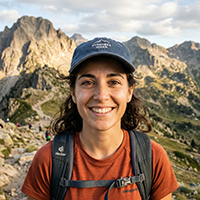
Realistic headshot of a 28-year-old Spanish woman hiker, outdoor in the Pyrenees mountains, wearing a hiking backpack and a cap, smiling warmly, sunlit rocky landscape behind her, natural colors, joyful expression, medium close-up.
Maria
Hiking, 28 – Spain
"I got back from a 4-day trek — I'd recorded each stage separately. I imported everything at once and the tool put the segments in the right order by itself. I was expecting it to be complicated, it wasn't at all."
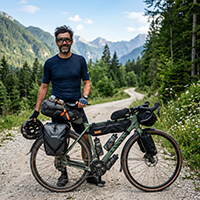
Realistic portrait of a 41-year-old Slovenian man, gravel bikepacker, standing next to a loaded gravel bike on a forest road, stubble, focused but friendly expression, cycling glasses, helmet in hand, green alpine background, outdoor natural light.
Luka
Gravel bikepacking, 41 – Slovenia
"For my Julian Alps tour, I used the POIs to add supermarkets and campsites. The track was automatically recalculated to pass each point. Essential when you're travelling light."
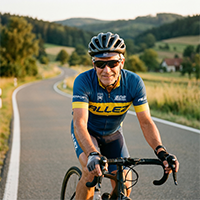
Realistic portrait of a 63-year-old German road cyclist, outdoors on a quiet asphalt road with rolling hills, silver hair, wearing a cycling jersey and wraparound sunglasses, smiling calmly, bike handlebar visible, afternoon golden hour light, medium shot.
Alexander
Road cycling, 63 – Germany
"I was planning a tour of the Schwarzwald last autumn — I was torn between two options for the last section. Comparing the two files side by side, distance and elevation gain together, saved me an hour of calculations on paper."
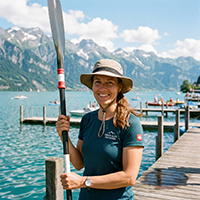
Realistic portrait of a 39-year-old Swiss woman kayaker, standing on a wooden dock by a Swiss lake, holding a paddle, wearing a quick-dry shirt and a sun hat, smiling, water and mountains in background, bright sunny day, medium close-up.
Sophie
Kayak / SUP, 39 – Switzerland
"For my lake crossings, the freehand drawing is perfect: no absurd road routing, I draw my line directly on the water. The wind on Lake Geneva can pick up in 20 minutes — I check the 7-day forecast before every launch."
9 guides

How to get the most from your GPS tracks

Practical tips for cyclists, trail runners and hikers who want to master their GPX files.

Gravel & MTB

How to analyse a gravel route's surfaces before heading out

Before loading up your bags, knowing whether you'll be riding on 60% tarmac or 70% dirt track makes all the difference to preparation. GPX Edit Pro colours your GPX track by actual surface extracted from OpenStreetMap: tarmac, compacted gravel, dirt path, grass, rock. A chart shows the exact percentage breakdown. Result: you leave with the right bike, the right tyres and the right tyre pressure.

① Import the GPX file ② Analysis panel → Surface by colour ③ Read the breakdown chart
Garmin & GPS

Retrieve and edit a track recorded on Garmin Connect

Your Garmin Edge or Forerunner records every outing in FIT format. To edit that file — remove a failed out-and-back, cut the first few warm-up kilometres, fix erratic elevations from a poor barometric signal — you need a GPX editor that reads FIT directly. GPX Edit Pro imports your .fit without any intermediate conversion, displays the full elevation profile and lets you cut, fix and re-export as standard GPX, ready to load onto Garmin Connect or send to Strava.

① Export the .fit from Garmin Connect ② Drag and drop into GPX Edit Pro ③ Edit, export as GPX
Trail & Hiking

Read and prepare an elevation profile before a trail run or hike

The elevation gain shown on platforms is often wrong — raw GPS altitudes unfiltered, erratic points caused by going under tree cover or through a tunnel. For reliable ascent figures, two steps: fix the elevations from a digital elevation model (EU-DEM 25m for Europe), then read the interactive profile. In GPX Edit Pro, hover over the curve to locate each pass on the map, identify steep sections with gradient colouring, and select a zone on the profile to extract a segment — useful for isolating a climb before a recce.

① Edit → Fix elevation (EU-DEM) ② Enable Gradient by colour ③ Select a zone on the profile
Bikepacking

Organise supplies and accommodation for a multi-day journey

On a tour spanning several days — an Alps crossing, a Scottish Highlands tour, a Pyrenees traverse by bike — logistics depend on what's available along the route. GPX Edit Pro displays directly on the map the OpenStreetMap points of interest filtered by category: supermarkets, bakeries, pharmacies, campsites, mountain huts, guesthouses, petrol stations. Click a POI to see its distance from the track. One click reroutes your itinerary to pass through it, then back to the main route. Add waypoints with personal notes to remember opening times or contacts. Everything exports in the final GPX file with standard <wpt> tags — visible on your Garmin or Wahoo GPS.

① POIs → filter by category ② Click a POI → add to track ③ Add waypoints with notes → export
Planning

Create a GPX route from scratch without a mobile app

No need for Komoot or Strava to plan a route. GPX Edit Pro includes a routing engine directly in the browser, with no install. Choose your profile — road cycling, MTB, trail running, hiking — then click the map to place waypoints. The optimal path is calculated automatically between each point, following roads and trails suited to your activity. You can also draw freehand for off-network areas. As you draw, the elevation profile builds in real time: elevation gain, distance and max altitude are visible before you've even finished. Export as standard GPX as soon as the route suits you.

① Choose the profile (road, MTB, trail, hiking) ② Place points on the map ③ Check the elevation profile → export
Share & Export

Share a GPX track with your riding or hiking companions

You've prepared a route and want to share it with your group without going through a third-party platform? GPX Edit Pro generates a unique share link for each track, with a QR code — handy to display on screen or print on a route sheet. Your contact opens the link in their browser: the track displays directly on the map with the elevation profile, no account or sign-up on their side. They can explore it, check the statistics and download the GPX file to import on their own GPS. No data stored on the server beyond the shared file.

① Share → copy the URL or scan the QR code ② Recipient opens the link in their browser ③ They view and download the GPX
Simulation

Estimate the duration and effort of a route before heading out

GPX Edit Pro includes an activity simulator with 7 sport profiles: hiking, trail running, road cycling, gravel, MTB, kayak and stand-up paddleboarding. Enter your age, weight and effort level (easy, moderate, intense), and the tool calculates an estimated duration via the Naismith formula calibrated segment by segment — climbs slow you down, gentle descents speed you up. The simulation also returns estimated average and max heart rate based on your physiological parameters, and an average cadence per sport. For water activities (kayak, SUP), elevation correction is disabled — distance is all that counts. Ideal for calibrating water and food needs or planning timings before a multi-day tour.

① Import GPX → choose the sport ② Set age, weight, effort level ③ Read estimated duration, HR and cadence
Comparison

Compare two variants of the same route to choose the right track

Faced with two options — going over the main pass or contouring via the valley, taking the direct road or the scenic alternative with less elevation gain — the figures shown on platforms are rarely enough to decide. GPX Edit Pro lets you import both files simultaneously and open the comparison panel to see side by side: total distance, elevation gain, elevation loss, max altitude, estimated duration, average speed. Both tracks are displayed together on the map in distinct colours, and their elevation profiles are overlaid. Enable surface detection on each one to also compare the proportion of tarmac and trails — useful before a gravel or MTB route.

① Import both GPX files ② Open the Comparison panel ③ Read stats side by side → choose
GPS Optimisation

Reduce a large GPX file for an older GPS device

Older Garmin Edge computers, entry-level GPS watches or certain Wahoo devices have a per-file point limit. A GPX from a long recording — an ultra-trail, multi-day hike or cycling tour — can exceed 50,000 points and cause slowdowns or a loading error. The built-in Douglas-Peucker algorithm reduces the point count while preserving the general shape: bends are kept, straight sections are simplified. Adjust the tolerance in metres and see the result in real time on the map before confirming — a 5m setting often brings 40,000 down to 3,000 points with no visible distortion.

① Edit → Simplify track ② Adjust the tolerance (m) ③ Check the result → confirm and export

Ready to edit your GPX track?

Cut, merge, reverse or plan your route in a few clicks. No install, no account required.

Open the GPX editor for free →